BioImage Model Zoo
BiaPy is proud to be a Community Partner of the BioImage Model Zoo (BMZ), an initiative that facilitates the sharing and reuse of deep learning models for bioimage analysis. As part of this partnership, BiaPy can import, fine-tune, and export models in the BMZ format, enabling seamless integration with this ecosystem.
Note
BiaPy supports importing models that are exported in the PyTorch format using a PyTorch state dictionary. Please note that this requirement means not all models available in the BioImage Model Zoo will be compatible with BiaPy.
Depending on how you’re using BiaPy, you can access these models in the following ways:
Graphical user interface
Import
In the graphical user interface (GUI), you can explore and import compatible models through the Wizard. From the home screen, you can start the Wizard by clicking on the Wizard tab on the left side of the GUI, or by clicking the Wizard button at the bottom of the screen (displaying a “Let me help you out!” message).
Once in the Wizard, follow these steps:
Specify the path and name of your configuration file and click on “Start”.
Answer whether your images are in 3D.
Select the workflow you want to create.
You’ll encounter the “Do you want to use a pre-trained model?” prompt. Select “Yes, I want to check if there is a pretrained model I can use”.
Click on the “Check models” button to initiate the search for models compatible with BiaPy. The search process requires an internet connection and may take a few minutes.
Once the search is complete, a new window will display a list of models available for use in BiaPy, filtered by the selected workflow and image dimensions. Double-click on a model to select it.
Find a depiction of these steps below:

Step 0: Specify the path and name of your configuration file and click on "Start".
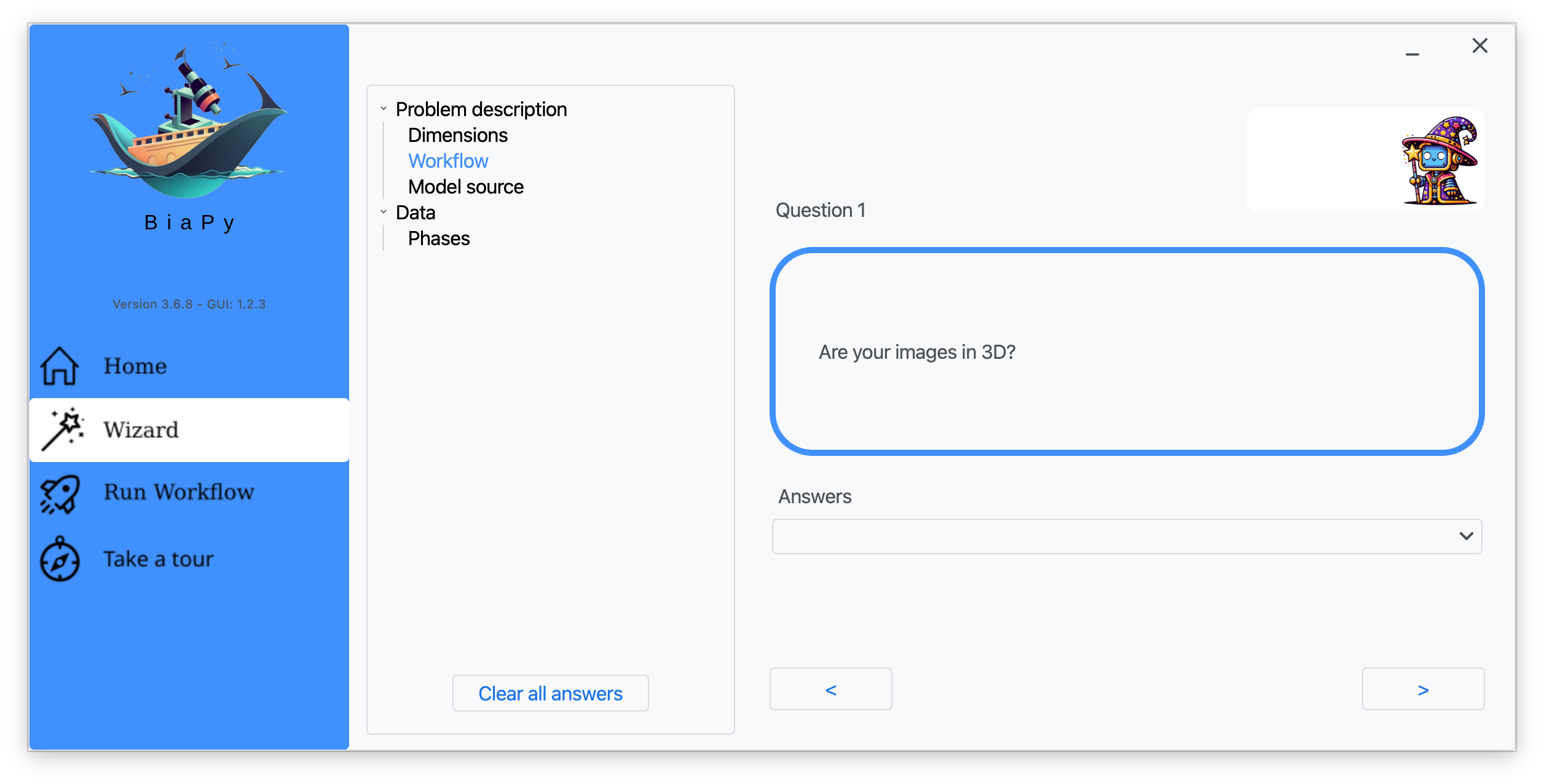
Step 1: Answer whether your images are in 3D.
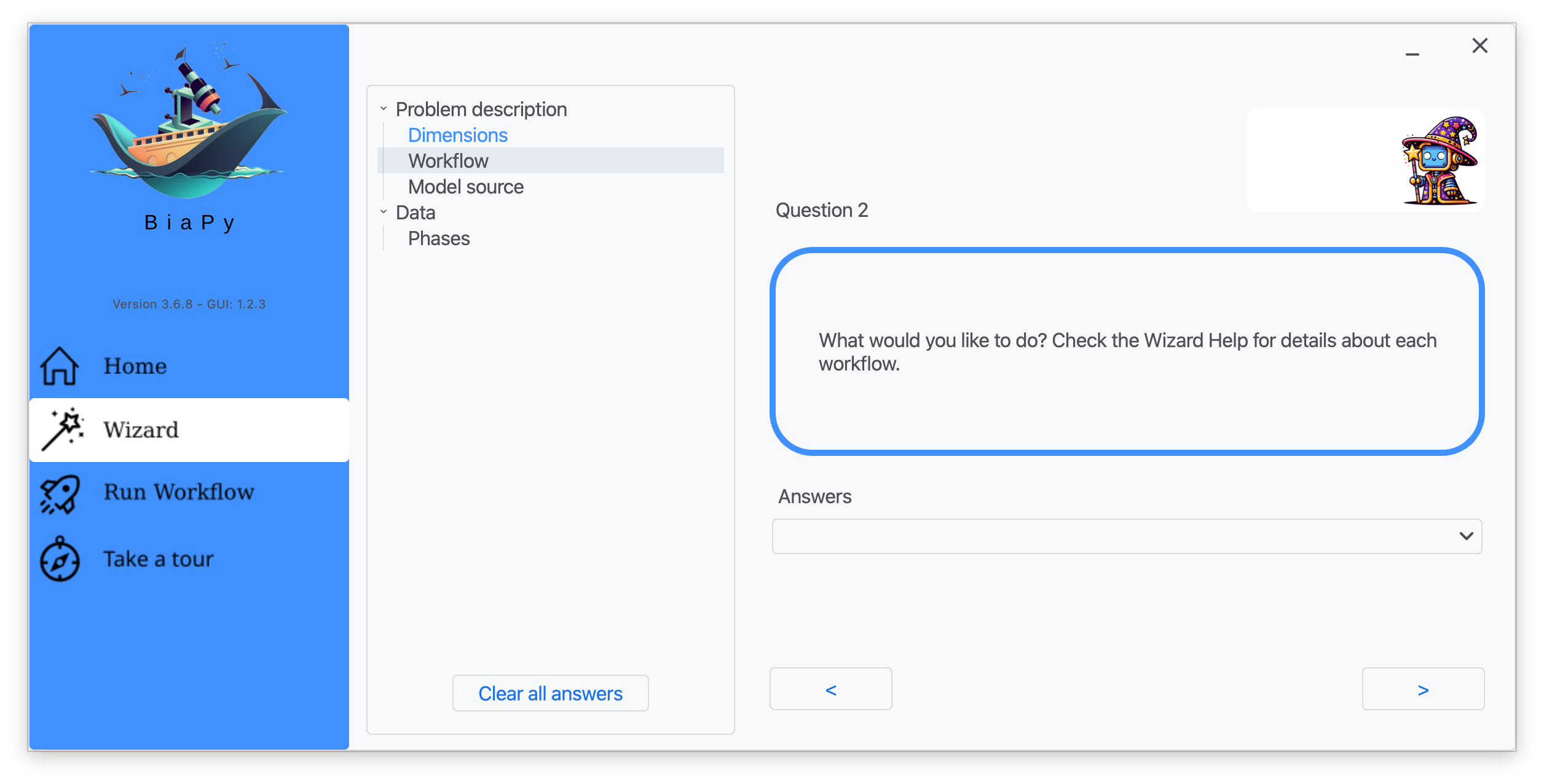
Step 2: Select the workflow you want to create.
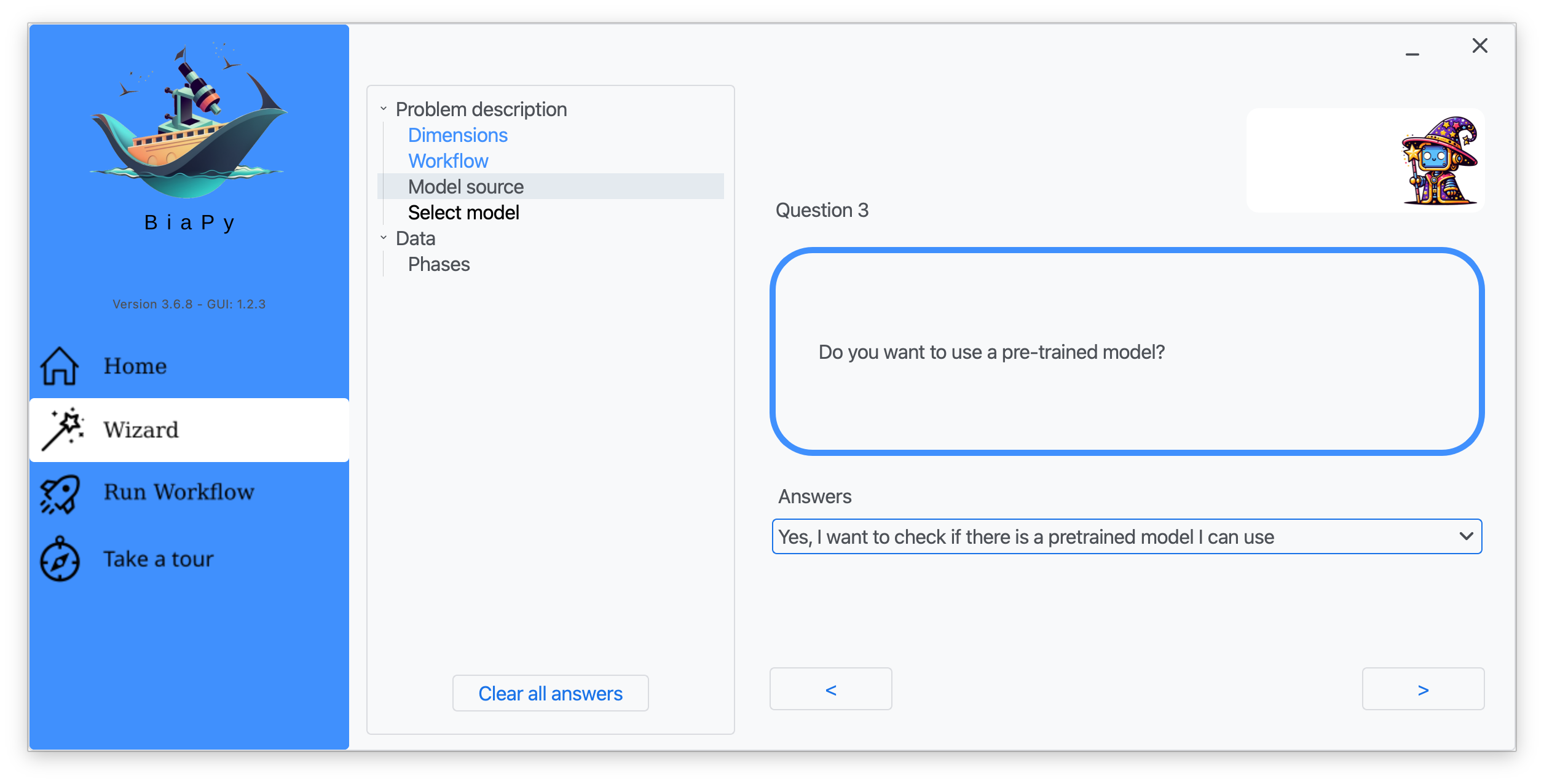
Step 3: Specify you want to look for pretrained models.

Step 4: Click on "Check models".
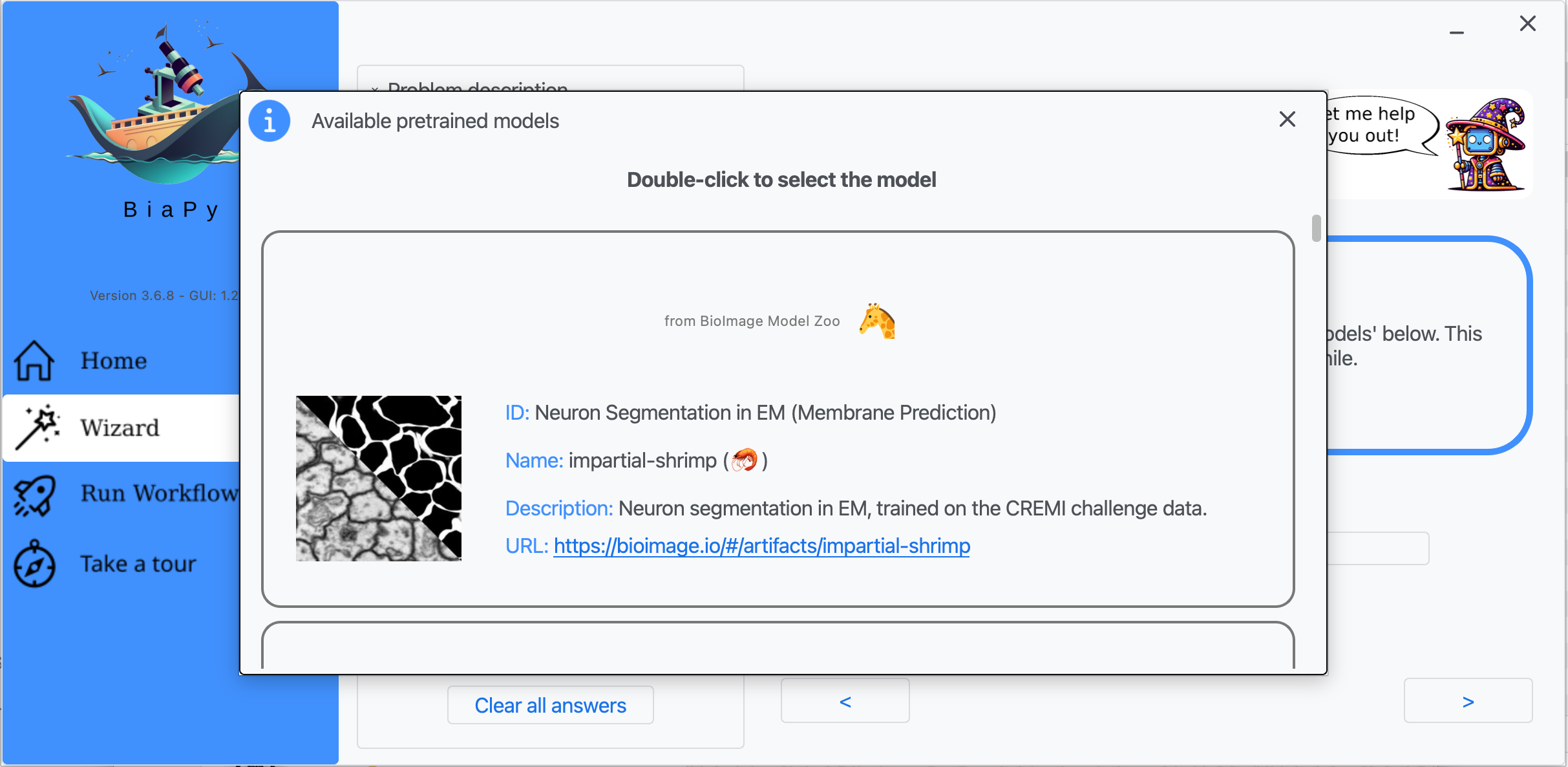
Step 5: Select a model from the list by double-clicking on it.
You can also check our video tutorial on how to import a BMZ model in the GUI using as example the 2D instance segmentation workflow:
Export
In the current GUI, BMZ model export is not configured through dedicated GUI fields. To export to BMZ format when using the GUI, you need to edit the YAML configuration file and set the BMZ export variables there.
If you prefer alternatives to editing YAML manually, please use the Jupyter notebooks workflow (section below) or the Command line/Python workflow, where export can be configured directly in notebook cells or Python code.
After running the workflow and completing the training and/or testing phases, a ZIP file containing the model in BMZ format will be generated. This file will be saved in the results folder, within a directory named “BMZ_files”. The file path will also be displayed in the running window.
Jupyter notebooks
In all notebooks there are two cells prepared to import and export models from/to the BioImage Model Zoo:

Import model from BioImage Model Zoo

Export model to BioImage Model Zoo format
As with the GUI, you can reuse the metadata of a previous BMZ model or input the corresponding metadata manually (with the same fields as described for the GUI). We have also prepared a video tutorial explaining the whole BMZ import/export process using as example the 2D instance segmentation workflow available as a Colab notebook:
Command line
Import
To use a BMZ model via the command line, you need to set the MODEL.SOURCE parameter to "bmz" and specify the model with MODEL.BMZ.SOURCE_MODEL_ID. This field can either be the DOI of the model or its nickname, such as “affable-shark”.
Export
To export a model to BMZ format, call the export_model_to_bmz() function. You can find all the instructions for exporting a model in the export_bmz_test.py script. For example, it can be invoked as follows:
# Initialize BiaPy
biapy = BiaPy(...)
biapy.run_job() # You can also call .prepare_model(), .train(), or .test() depending on your use case.

# Create a dictionary with all BMZ requirements
bmz_cfg = {}
bmz_cfg["description"] = "Mitochondria segmentation for electron microscopy"
bmz_cfg["authors"] = [{"name": "Daniel Franco", "github_user": "danifranco"}]
bmz_cfg["license"] = "CC-BY-4.0"
bmz_cfg["tags"] = ["electron-microscopy", "mitochondria"]
bmz_cfg["cite"] = [
    {"text": "training library", "doi": "10.1101/2024.02.03.576026"},
    {"text": "architecture", "doi": "10.1109/LGRS.2018.2802944"},
    {"text": "data", "doi": "10.48550/arXiv.1812.06024"},
    ]
bmz_cfg["doc"] = args["doc_file"]
bmz_cfg["model_name"] = args["model_name"]

# Export model
biapy.export_model_to_bmz(output_path, bmz_cfg=bmz_cfg)
If the model was previously imported from BMZ, you have the option to reuse its fields during the export process:
# Initialize BiaPy
biapy = BiaPy(...)
biapy.run_job() # Or you could call also .prepare_model(), .train() or .test() depending you case

# Export model, reusing the original BMZ configuration
biapy.export_model_to_bmz(output_path, reuse_original_bmz_config=True)
Alternatively, you can configure all the required variables through a YAML file. You can review the relevant variables here.